Translation Admin Panel
The Translation Admin Panel gives you a simple interface to review, edit, import, export, and publish translations used by Translazor.
Use this page when you want to manage translated content after it has been collected and cached by your Blazor application.
The admin panel is especially useful when you want to:
- Review generated translations before publishing them.
- Edit body translations used inside page content.
- Edit head translations used for titles, meta descriptions, Open Graph, and Twitter/X metadata.
- Save changes as drafts before applying them to the website.
- Publish one key, one page, one language, or all drafts.
- Export all translations as JSON.
- Import translations from a JSON file.
- Clear published translations when needed.
Availability
The Translation Admin Panel is available only for plans that include admin panel access.
If the current license does not allow the admin panel, the user will see a message similar to:
Admin panel is available only on paid plans.
What the admin panel shows
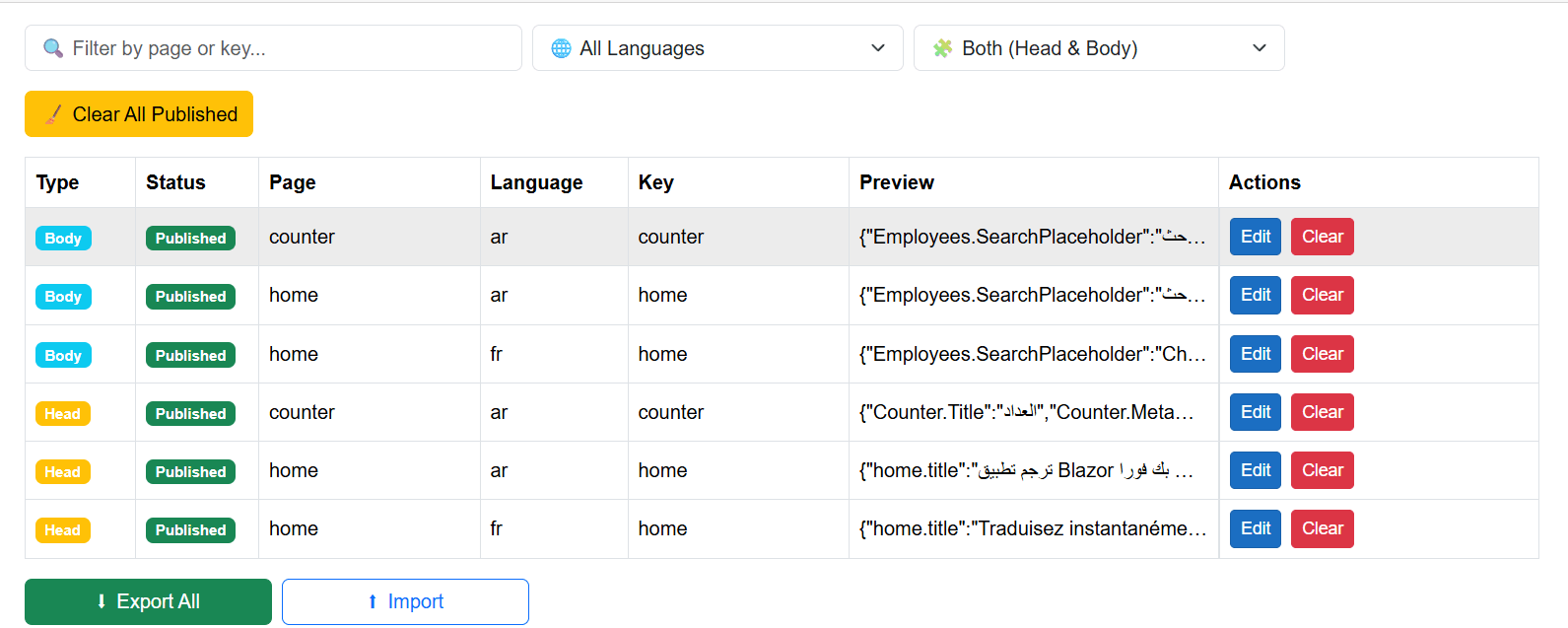
The admin panel displays translation entries grouped by:
| Column | Description |
|---|---|
Type | Shows whether the entry belongs to Body or Head translations. |
Status | Shows whether the entry is Published or has a Draft. |
Page | The page identifier used by Translazor. |
Language | The target language of the translation. |
Key | The translation key. |
Preview | A short preview of the current cached translation content. |
Actions | Actions such as edit, apply draft, or clear published content. |
Main panel screenshot
Filtering translations
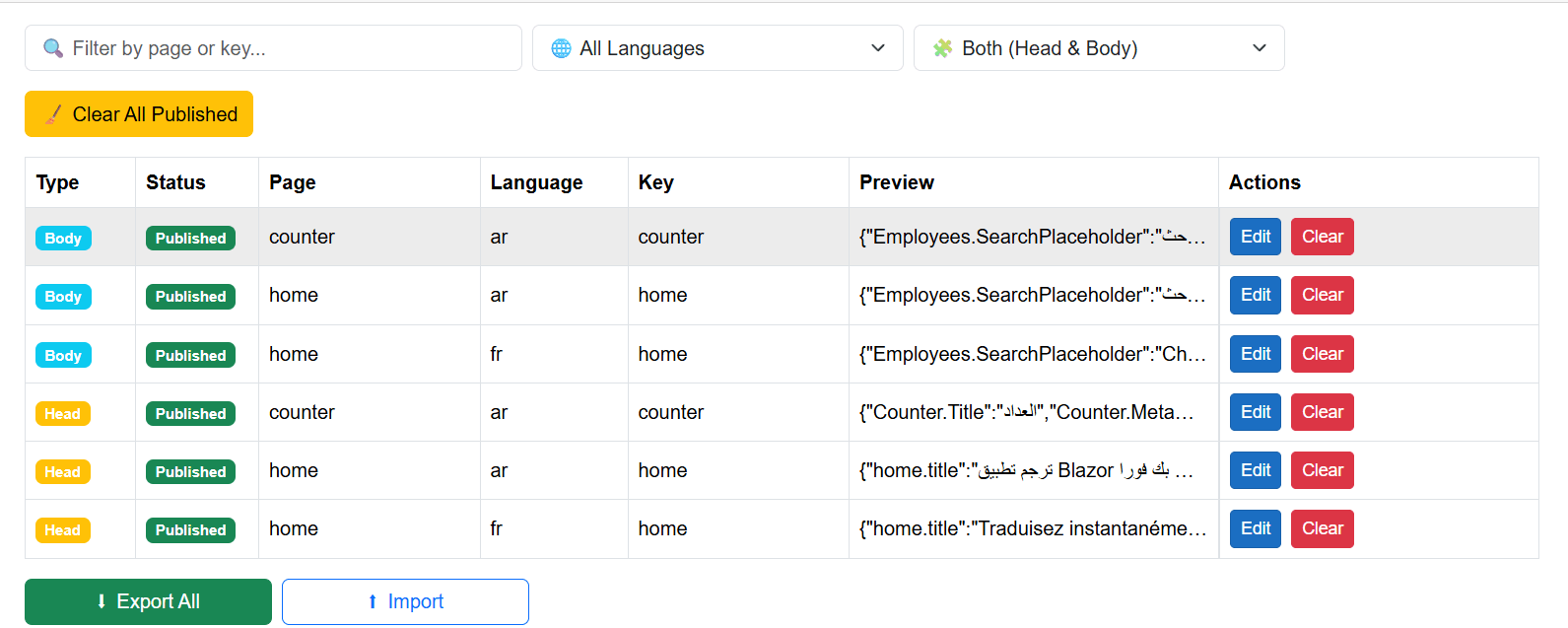
The admin panel includes filters to help you quickly find the translations you want to review.
You can filter by:
- Page ID
- Translation key
- Language
- Translation type:
Body,Head, or both
Example filters shown in the UI:
Filter by page or key...
All Languages
Both (Head & Body)
The text search filter checks both the page ID and translation key.
Translation types
Translazor separates translations into two main types.
| Type | Description |
|---|---|
Body | Translations used inside visible page content, such as headings, paragraphs, buttons, labels, and placeholders. |
Head | Translations used inside the document head, such as page title, meta description, Open Graph, and Twitter/X metadata. |
This makes it easier to review page content and SEO metadata separately.
Draft and published workflow
The admin panel uses a draft/publish workflow.
When you edit a translation, you can save your changes as a draft first. Draft changes do not immediately replace the published translation.
After reviewing the draft, you can apply it to the website.
The typical workflow is:
- Open the admin panel.
- Find the page, language, or key you want to edit.
- Click
Edit. - Update the translation value.
- Click
Save Page DraftorSave Key Draft. - Review the draft.
- Click
Apply PageorApply Keyto publish it.
Editing translations
Click Edit next to a translation entry to open the edit dialog.
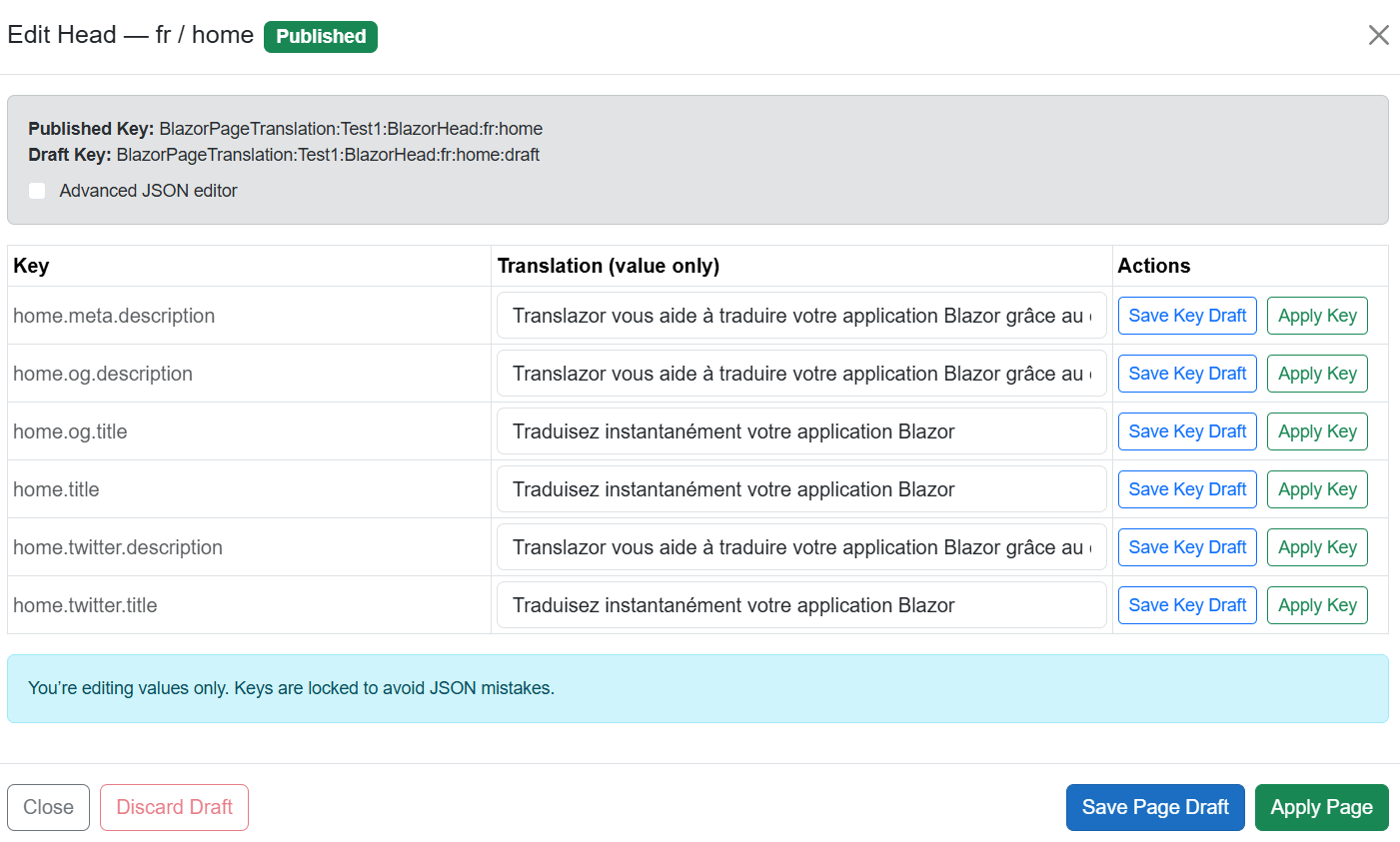
The edit dialog shows:
- Translation type
- Language
- Page ID
- Published cache key
- Draft cache key
- Current status
- Translation items
- Draft and publish actions
Edit dialog screenshot
Simple editor mode
By default, the edit dialog opens in simple editor mode.
In this mode, you edit translation values only. The translation keys are locked to reduce the risk of breaking the JSON structure.
This mode is recommended for most users.
Example UI behavior:
You’re editing values only. Keys are locked to avoid JSON mistakes.
Editing one key
In simple editor mode, each translation key has its own actions.
| Action | Description |
|---|---|
Save Key Draft | Saves a draft for one translation key only. |
Apply Key | Publishes one translation key only. |
This is useful when you want to fix a single sentence without publishing the whole page.
Editing one page
The edit dialog also provides page-level actions.
| Action | Description |
|---|---|
Save Page Draft | Saves all edited values for the current page/language/type as a draft. |
Apply Page | Publishes the current page/language/type. |
Discard Draft | Removes the draft and keeps the published version unchanged. |
Close | Closes the edit dialog without applying changes. |
Advanced JSON editor
The admin panel also includes an advanced JSON editor.
Use this mode only when you need to edit the raw JSON directly.
To enable it, check:
Advanced JSON editor
When advanced mode is enabled, key-level save and apply actions are disabled.
Advanced mode: invalid JSON will break the save. Key-level save/apply is disabled here.
Use this mode carefully. Invalid JSON can prevent the translation from being saved correctly.
Advanced JSON screenshot
Publishing drafts
The admin panel supports multiple publishing options.
| Action | Description |
|---|---|
Apply Key | Publishes one translation key. |
Apply Page | Publishes one page/language/type entry. |
Apply {language} Drafts | Publishes drafts for the selected language. |
Apply All Drafts | Publishes all available drafts. |
When a language filter is selected, the admin panel can publish all drafts for that language.
For example, if ar is selected, the button will show:
Apply ar Drafts
Clearing published translations
The admin panel can clear published translations when needed.
| Action | Description |
|---|---|
Clear | Clears one published entry. |
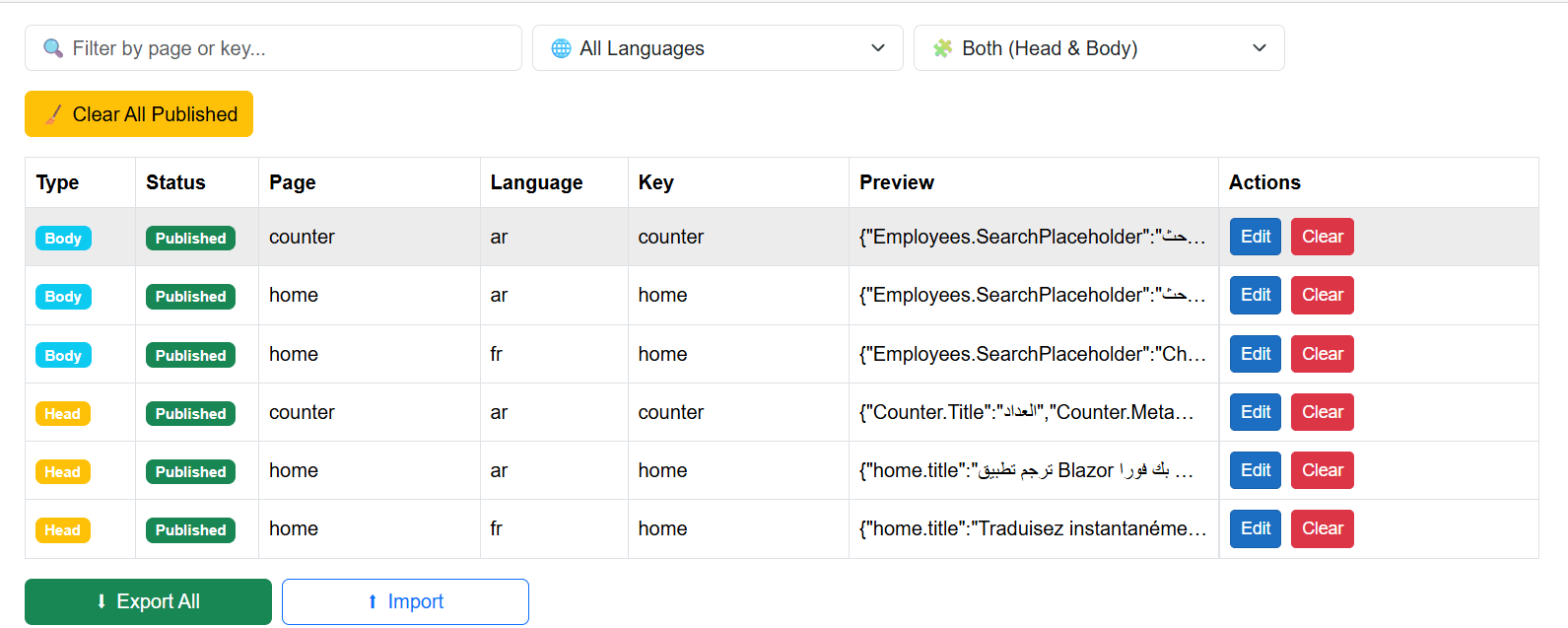
Clear All Published | Clears all published entries matching the selected filters. |
Use this carefully. Clearing published translations removes the current published cache entries.
Importing translations
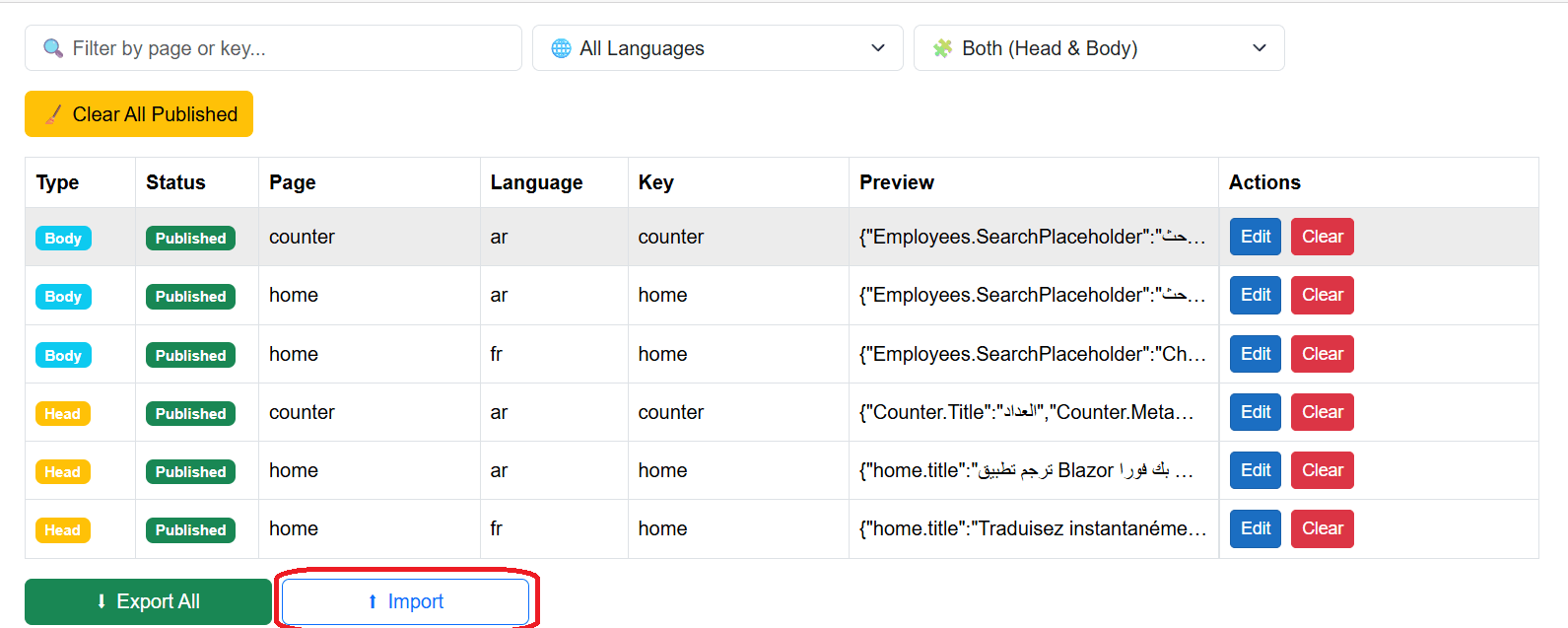
You can import translations from a JSON file.
Click Import and select a JSON file.
The uploaded file must match the expected Translazor translation export structure.
The current upload limit is:
10 MB
If the JSON structure is invalid, the import will fail and show an error.
Import failed. Invalid JSON structure.
Import screenshot
Exporting translations
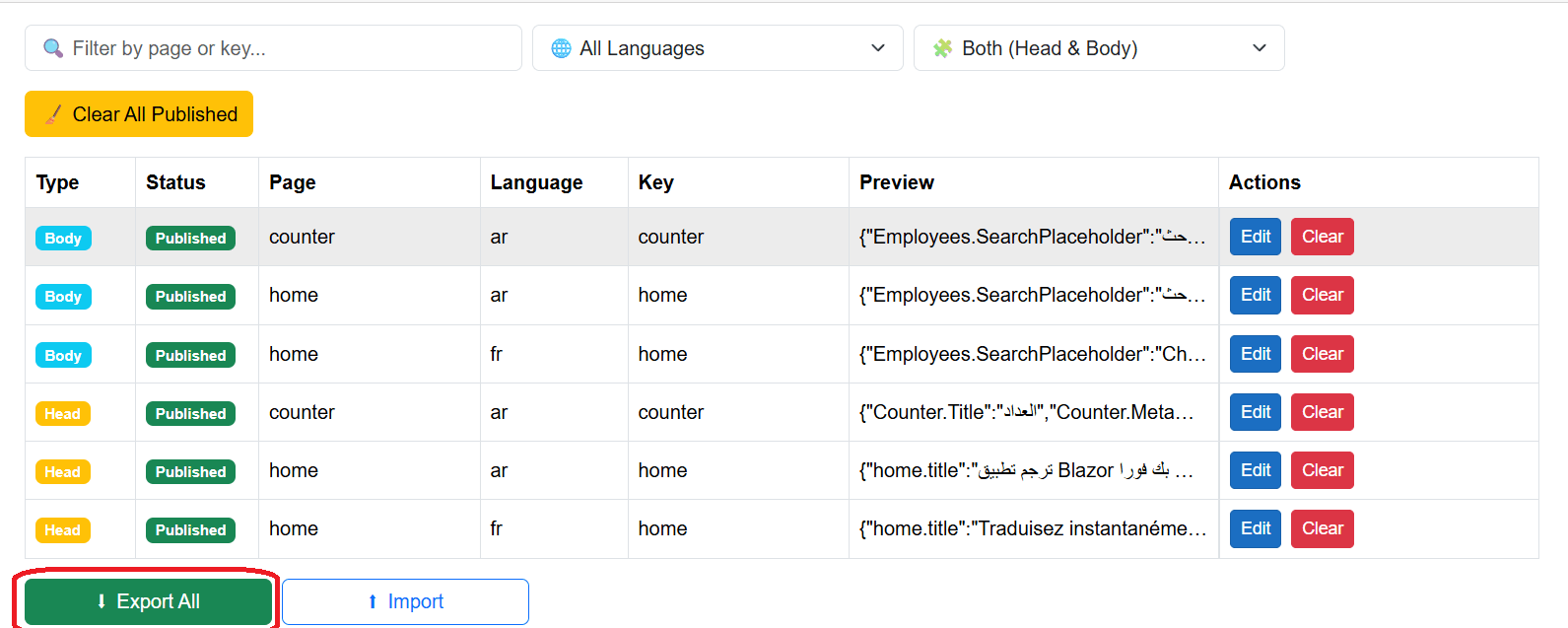
Click Export All to export all translations.
This is useful when you want to:
- Back up translations.
- Review translations outside the application.
- Move translations between environments.
- Edit translations manually and import them again later.
Export screenshot
Busy and loading states
When the admin panel is loading translation cache data, it shows:
Loading translation cache…
When an operation is running, the panel displays a progress indicator and temporarily disables some actions.
This helps prevent multiple overlapping save, publish, import, export, or clear operations.
Empty state
If no translations are found, the admin panel shows:
No translations found.
This usually means no translations have been collected or cached yet.
To generate entries, visit translated pages in your application and switch to the target language.
Example usage
Add the admin component to a protected admin page in your Blazor application.
@page "/admin/"

<TranslationAdmin />
For production applications, make sure this page is protected and only accessible to authorized administrators.
Protecting the admin page
The Translation Admin Panel can modify published translations, import JSON, export translation data, and clear cache entries.
For this reason, it should not be publicly accessible.
Recommended protections:
- Require authentication.
- Restrict access to admin users only.
- Do not expose the admin route to anonymous users.
- Use your normal application authorization system.
Example:
@page "/admin/translations"
@attribute [Authorize(Roles = "Admin")]

<TranslationAdmin />
Troubleshooting
The admin panel says it is available only on paid plans
Check that the current license supports admin panel access.
No translations are shown
Make sure translated pages have been visited and that translations have been collected or cached.
Also check that the admin query service can read from the configured cache provider.
Drafts are not visible after saving
Reload the admin panel and check that the draft cache key was created correctly.
Also make sure the selected filters are not hiding the draft entry.
Key-level actions are disabled
Key-level save and apply actions are disabled when advanced JSON editor mode is enabled.
Disable advanced JSON mode to edit individual keys.
Import fails
Make sure the imported file is valid JSON and matches the expected Translazor export format.
Also make sure the file size does not exceed the upload limit.
Head translations do not update on the page
Make sure HeadOutlet is rendered interactively if your application requires instant head updates after language switching.
<HeadOutlet @rendermode="InteractiveServer" />
Also check that your routes are rendered interactively if needed.
<Routes @rendermode="InteractiveServer" />